How to Transcribe Instagram Reels to Text Online for Free (2026 Guide)
How to Transcribe Instagram Reels to Text Online for Free (2026 Edition)
Instagram Reels are now one of the most popular short‑video formats, but turning them into clean, usable text is still surprisingly hard. Unlike YouTube, Instagram doesn’t expose a transcript panel. Unlike TikTok, there’s no “Show transcript” button. If you want to convert Instagram Reels to text, you need the right AI transcription workflow.
This guide walks through every practical way in 2026 to transcribe Instagram Reels to text online for free, including the fastest Chrome extension method, a no‑install web dashboard method, and why most tools that claim to be “free” are not truly free when it comes to Instagram content.
Quick Overview
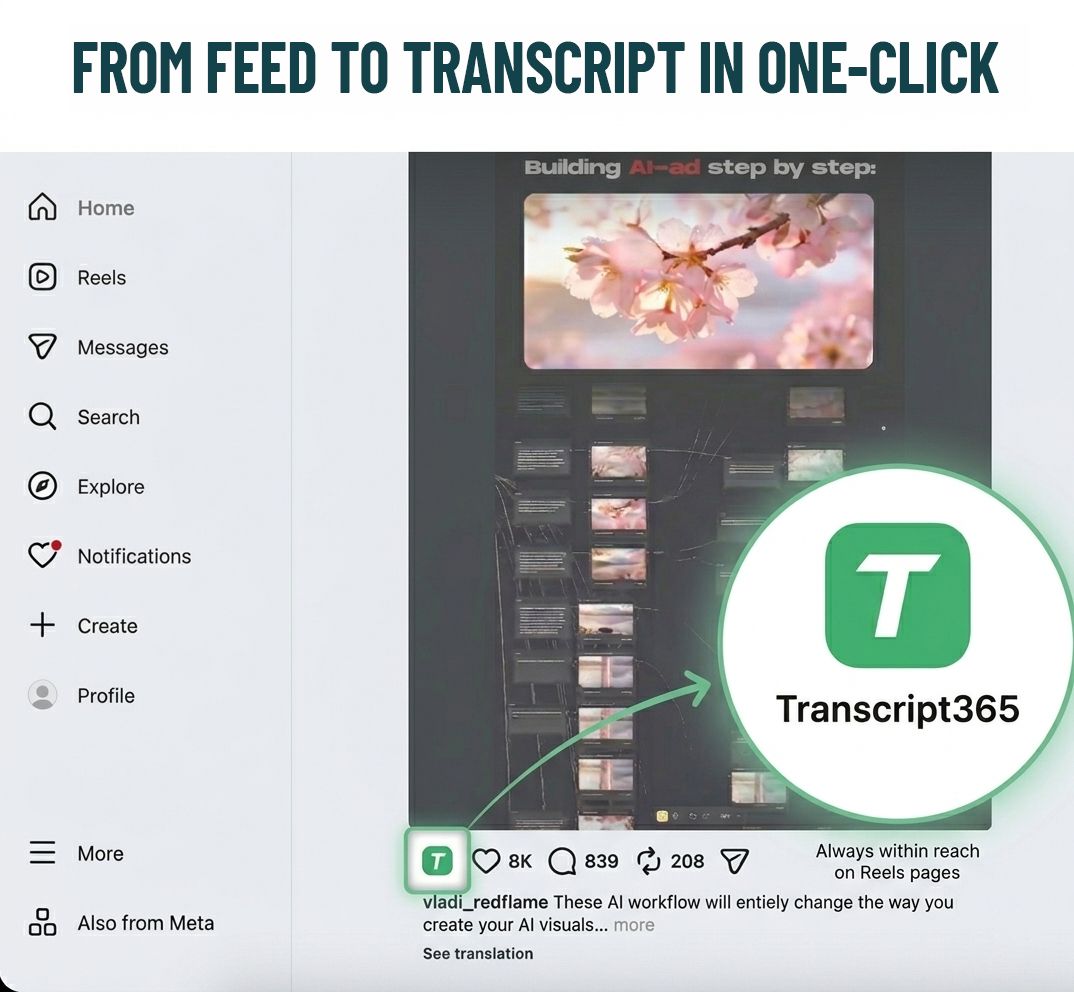
- Fastest method: Use the Transcript365 Chrome extension – open any Instagram Reel, click the extension icon, and get an AI transcript in seconds.
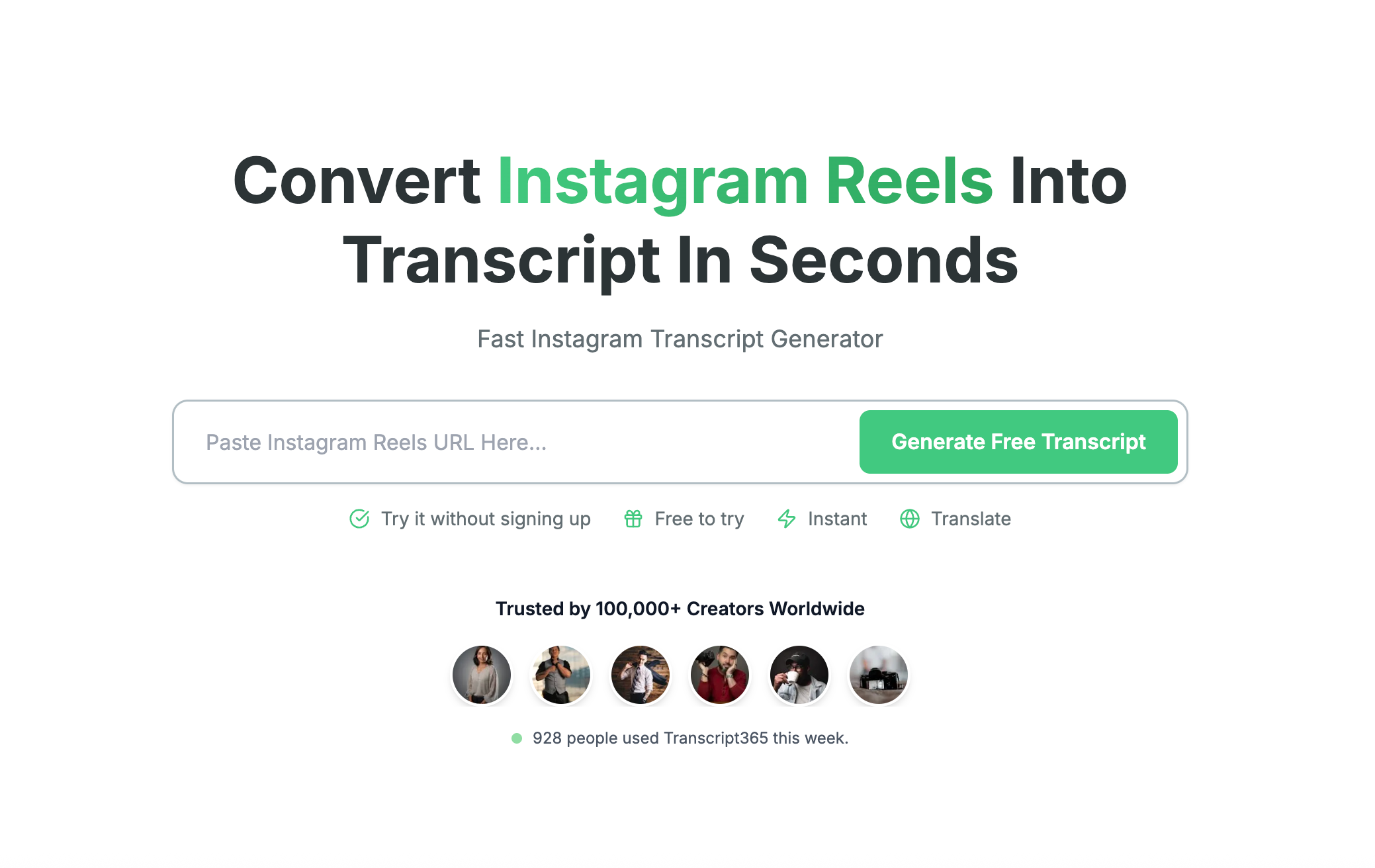
- Alternative method: Use the Transcript365 web dashboard – paste the Reel URL and generate an AI transcript online, no software installation required.
- Both methods support Instagram Reels: Every Transcript365 plan supports Instagram Reels AI transcription. You get 5 free credits every week, so you can use all tools at no cost for light usage. If you need more, the pay‑as‑you‑go Starter pack is only $4.9 for 120 credits. TikTok AI transcription is completely free and never consumes credits.
- Avoid these traps: Skip tools that force you to download the Reel first (extra steps, potential audio degradation), and avoid per‑minute pricing (too expensive for short‑form content).
Why Transcribe Instagram Reels at All?
Instagram Reels are no longer just entertainment. Creators and brands use them for tutorials, product reviews, expert tips, news commentary, and creative storytelling. Turning that audio into text unlocks a lot of value.
Repurpose Reels Across Platforms
A 30‑second skincare Reel can be repurposed into:
- A detailed blog post
- Copy for a Pinterest Pin description
- A section in your email newsletter
- A Twitter/X thread
- A comparison table for your product page
But you can’t repurpose what you can’t extract. AI transcription is the first step to making your Reels reusable in multiple formats.
Create Accurate Subtitles
Instagram’s auto‑captions are improving, but they still struggle with:
- Accents and non‑native English
- Loud background music and ambient noise
- Fast speech and overlapping dialogue
- Industry jargon and brand names
A proper AI transcript lets you create and edit accurate subtitles, instead of settling for “good enough” captions.
Research and Competitor Analysis
If you monitor competitor Reels to understand their messaging, product positioning, or content strategy, you need searchable text. Watching 50 Reels and taking manual notes doesn’t scale. AI transcription does.
Accessibility and Compliance
Accurate captions and transcripts are not just a nice‑to‑have – they’re essential for deaf and hard‑of‑hearing users. Accessibility standards like ADA and WCAG increasingly apply to social content. AI transcription is the foundation for compliance.
SEO and Discoverability
Instagram content doesn’t naturally show up in Google search. But if you transcribe your Reels and publish the text on your site or blog, that content can be indexed and bring in search traffic that would never find you through the Instagram algorithm alone.
Method 1: Transcript365 Chrome Extension (Fastest One‑Click Option)
The Transcript365 Chrome extension is the fastest way to run AI transcription for Instagram Reels, because it works directly on the page – no copying links, no downloading files, no app‑switching.
Step‑by‑Step Instructions
- Install the Transcript365 Chrome extension from the Chrome Web Store:
Transcript365 Chrome Extension - Open Instagram in your browser and navigate to the Reel you want to transcribe.
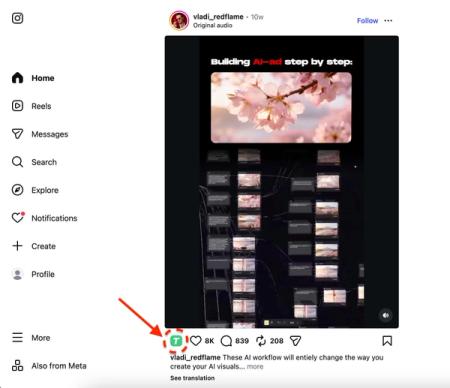
- Click the Transcript365 icon in your browser toolbar while the Reel is visible on screen.
- Wait 3–10 seconds while the AI transcription engine processes the audio.
- View the transcript in the sidebar – with timestamps included.
- Copy, edit, or export the transcript in your preferred format (TXT, SRT, WebVTT).
Why the Chrome Extension Is the Best Choice
- True one‑click workflow: Stay on Instagram, no need to copy URLs or switch tabs.
- Fast AI transcription: Most Reels are fully transcribed in under 10 seconds.
- High accuracy: The AI model is tuned for typical Instagram audio – background music, outdoor recordings, fast speech, and regional accents.
- Multiple export formats: Export as SRT, WebVTT, or plain text TXT for subtitles or further editing.
- Works on all visible Reels: Any Reel you can watch in your browser (feed, profile, Explore) can be transcribed.
Things to Keep in Mind
- The extension works on desktop Chrome and other Chromium‑based browsers (Edge, Brave, etc.).
- Private Reels that you cannot view in your browser cannot be transcribed.
- Very long Reels (3+ minutes) may take slightly longer to process, but still only a short wait.
Method 2: Transcript365 Web Dashboard (No Install Needed)
If you don’t want to install a browser extension – or you’re on a device where extensions aren’t allowed – the Transcript365 web dashboard gives you the same AI transcription quality with a simple URL‑paste workflow.
Step‑by‑Step Instructions
- Go totranscript365.com.
- Copy the Instagram Reel link from your browser or the Instagram app (Share → Copy link).
- Paste the link into the Transcript365 input box.
- Click “Start Transcription”.
- Wait 3–10 seconds for the AI transcription to complete.
- Review, edit, and export your transcript in the format you need.
When to Use the Web Dashboard Instead of the Extension
- You prefer not to install extensions: For occasional use, opening a web page may be all you need.
- You’re on restricted devices: Phones, tablets, shared computers, or locked‑down work machines where you can’t add extensions.
- One‑off or ad‑hoc usage: You just need a quick AI transcription for a single Reel.
- Collaboration scenarios: Someone sends you a Reel link – you can simply paste it into the dashboard and share the transcript.
Why Instagram’s Built‑In Captions Aren’t Enough
| Limitation | Impact |
|---|---|
| Not every Reel has captions | Creators must enable them; many don’t. |
| Low accuracy for accents | Words are missed or mis‑recognized. |
| No export option | You can’t copy, download, or reuse text. |
| No editing tools | You can’t fix mistakes inside Instagram. |
| No real timestamps | Floating text, not structured timecodes. |
| Limited language coverage | Only a handful of languages supported. |
Instagram captions are a step forward for accessibility, but they’re not a full AI transcription solution. For accurate, exportable, and editable text, you need a dedicated tool like Transcript365.
Method 3: Other Transcription Tools (Require Downloading the Reel)
Many popular AI transcription tools can technically handle Instagram Reels, but almost all of them require you to download the Reel video first and then upload the file. That adds friction and often costs more.
How to Download an Instagram Reel
Before using these tools, you usually have to save the Reel as a local file. Common approaches include:
- Screen recording (built into iOS and Android)
- Third‑party Instagram downloaders (websites or apps)
- Browser developer tools (advanced users)
Note: Every extra step adds time, and compared with direct URL‑based AI transcription, you may also lose audio quality.
Comparison of Download‑First Tools
| Tool | Pricing | Workflow | Instagram Support | Key Limitation |
|---|---|---|---|---|
| Otter.ai | Free (300 min/month), Pro $16.99/mo | Download → upload | File upload only | English‑focused, no URL input |
| HappyScribe | From ~$0.20/min | Download → upload | File upload only | No real free tier, per‑minute cost |
| Rev | From ~$0.25/min | Download → upload | File upload only | No free tier, minimum spend |
| Descript | From ~$24/mo | Download → upload | File upload only | Desktop app, heavier workflow |
| Dokiscript | Free credits, Pro from $9.99/mo | URL or upload | Limited link support | Credit‑based, fewer languages |
Why Download‑First Workflows Are a Poor Fit for Reels
For Instagram Reels specifically, this approach has several problems:
- Extra steps: Each Reel requires 2–3 additional actions (copy link → download → upload).
- Quality loss: Screen recordings and re‑encoded downloads can degrade audio, which hurts AI transcription accuracy.
- Time overhead: At scale, downloading 20 Reels can easily add 10–15 minutes of manual work.
- No true bulk flow: You still end up handling each Reel individually.
By contrast, Transcript365’s direct‑link AI transcription (via Chrome extension or web dashboard) avoids all of this.
Best Practices for High‑Quality Instagram Reels Transcription
1. Use Direct Links Whenever Possible
Direct‑link AI transcription (via the Transcript365 web dashboard or Chrome extension) preserves the original audio quality from Instagram’s servers. Downloaded copies – especially screen recordings – introduce compression artifacts that can reduce accuracy.
2. Review and Fix Proper Nouns
Brand names, people’s names, and technical terms are the most common sources of small errors. Spending 30 seconds to correct them dramatically improves the final quality of your transcript or subtitles.
3. Export SRT or WebVTT for Subtitles
If your goal is to create subtitles, export your AI transcript as SRT or WebVTT. These formats preserve timestamps and can be imported directly into most video platforms and editing tools.
4. Be Careful with Music‑Heavy Reels
Reels often mix speech with loud background music. When the music is too prominent, AI transcription accuracy drops. You can mitigate this by:
- Looking for a version of the Reel with cleaner original audio (some creators post multiple versions).
- Using tools with noise‑reduction‑aware AI models.
- Planning to manually review and lightly edit transcripts for music‑heavy clips.
Instagram Reels vs Other Platforms: AI Transcription Challenges
Compared to other platforms, Instagram Reels have some unique challenges for AI transcription:
| Aspect | Instagram Reels | TikTok | YouTube |
|---|---|---|---|
| Built‑in transcript panel | ❌ None | ⚠️ Limited captions only | ✅ Full auto transcript |
| Public shareable links | ✅ Yes | ✅ Yes | ✅ Yes |
| Typical duration | 15–90 seconds | 15–60 seconds | Highly variable |
| Background music usage | ⚠️ Very common | ⚠️ Very common | ✅ Less dominant overall |
| Download difficulty | ❌ Requires third‑party tools | ❌ Requires third‑party tools | ✅ Many direct options |
| Multiple speakers | ⚠️ Common (duets, interviews) | ⚠️ Common (stitches, duets) | ✅ Common but longer format |
Instagram sits in the middle: harder than YouTube (no built‑in transcript), similar to TikTok in short length and heavy music usage, but with fewer native text tools than TikTok. That makes third‑party AI transcription tools even more important.
Real‑World Use Cases
For Instagram Creators
Scenario: You’re a fitness creator posting daily workout Reels and want to turn each one into a blog article on your site.
Workflow: Record Reel → publish on Instagram → run AI transcription via the Transcript365 Chrome extension → copy the transcript → expand it with extra explanations and links into a full blog post.
Time saved: ~15 minutes per Reel vs. re‑typing from scratch. At 30 Reels per month, that’s 7.5 hours saved every month.
For Marketing Agencies
Scenario: You manage Instagram campaigns for 5 brands and need to report on messaging themes and consistency.
Workflow: Collect Reel URLs for each brand → batch‑transcribe them via the Transcript365 web dashboard → search transcripts for key phrases and topics → build structured reports.
Benefits: Systematic, scalable, and searchable analysis instead of subjective manual note‑taking.
For Educators and Students
Scenario: You’re a language teacher using Instagram Reels as listening material.
Workflow: Find suitable Reels → run AI transcription with Transcript365 → quickly correct any minor errors → turn the transcript into exercises (gap‑fills, vocabulary tasks, comprehension questions).
Benefits: Any relevant Reel can become a classroom‑ready resource in minutes.
FAQ
Is Transcript365 really free to use?
Yes. You can use Transcript365 for free with 5 free credits every week. Those free credits let you run AI transcription on Instagram Reels using all available tools. If you need more capacity, the pay‑as‑you‑go Starter pack is very affordable: $4.9 for 120 credits, bringing the cost per video down to about $0.04 per AI transcription.
How does pay‑as‑you‑go pricing and credit validity work?
Transcript365 uses a non‑subscription, pay‑as‑you‑go model. You only buy credits when you need them – there is no mandatory monthly plan.
- Each paid credit lets you run AI transcription on one video.
- Purchased credits have an initial validity of 12 months.
- If any credits ever reach that limit, buying any new pack instantly reactivates all expired credits.
In practice, this means your paid credits never truly expire. You can come back at any time, top up once, and regain access to all previous unused credits.
How do I extract text from an Instagram Reel?
The fastest way is to use the Transcript365 Chrome extension. Open the Reel in your browser, click the extension icon, and get an AI transcript in a few seconds. Alternatively, copy the Reel URL and paste it into the Transcript365 web dashboard. Instagram itself does not provide a way to export Reel text.
Does Instagram provide automatic captions for Reels?
Yes, Instagram offers auto‑captions for Reels, but with major limitations:
- Not all Reels have captions enabled.
- Accuracy is often poor for accents, fast speech, and music‑heavy clips.
- You can’t export, download, or properly edit the captions.
For reliable, reusable text, you need a dedicated AI transcription tool like Transcript365.
What is the best tool to transcribe Instagram Reels?
Transcript365 is one of the best options for Instagram Reels AI transcription because it supports direct links via both a Chrome extension (one‑click on‑page) and a web dashboard, without forcing you to download videos first. It also uses a transparent credit system instead of per‑minute pricing, which keeps costs low for short‑form content.
Can I transcribe Instagram Reels in other languages?
Yes. Transcript365 supports 100+ languages for AI transcription of Instagram Reels, including English, Chinese, Spanish, French, Portuguese, Hindi, Arabic, and many more. You can select the language when you submit the Reel link, or rely on automatic language detection for multilingual content.
Summary
Instagram Reels are a rich source of content, but the platform doesn’t expose transcripts or make text easy to access. To turn Reels into usable text, you need tools that are built for social‑video AI transcription rather than treating it as an afterthought.
Transcript365 delivers one of the best Instagram Reels AI transcription experiences in 2026:
- Chrome extension: One‑click, on‑page AI transcription with no URL copying.
- Web dashboard: URL‑based AI transcription for any device, no installation required.
- Direct Instagram link support: No downloading or re‑uploading videos.
- 100+ languages and multi‑format export (TXT, SRT, WebVTT).
- Flexible pay‑as‑you‑go model: 5 free credits every week, and paid credits that effectively never expire thanks to reactivation on your next purchase.
Ready to transcribe your first Instagram Reel?
Install the Transcript365 Chrome extension and try one‑click AI transcription directly from your Instagram feed.
Last updated: April 2026
Article slug: transcribe-instagram-reels-to-text-online-free